
Table of Contents
Your first digital signage network was a success, and now you’re ready to expand across all your branches or franchises. But scaling from several screens to hundreds presents a huge challenge. How do you maintain brand consistency, manage content remotely, and allow for local customization without creating an IT nightmare? This guide breaks down the essential strategy for scaling your network effectively, using a simple, powerful platform like Kitcast as your foundation.
Step 1: Choose the Right Digital Signage Software (This is CRITICAL)
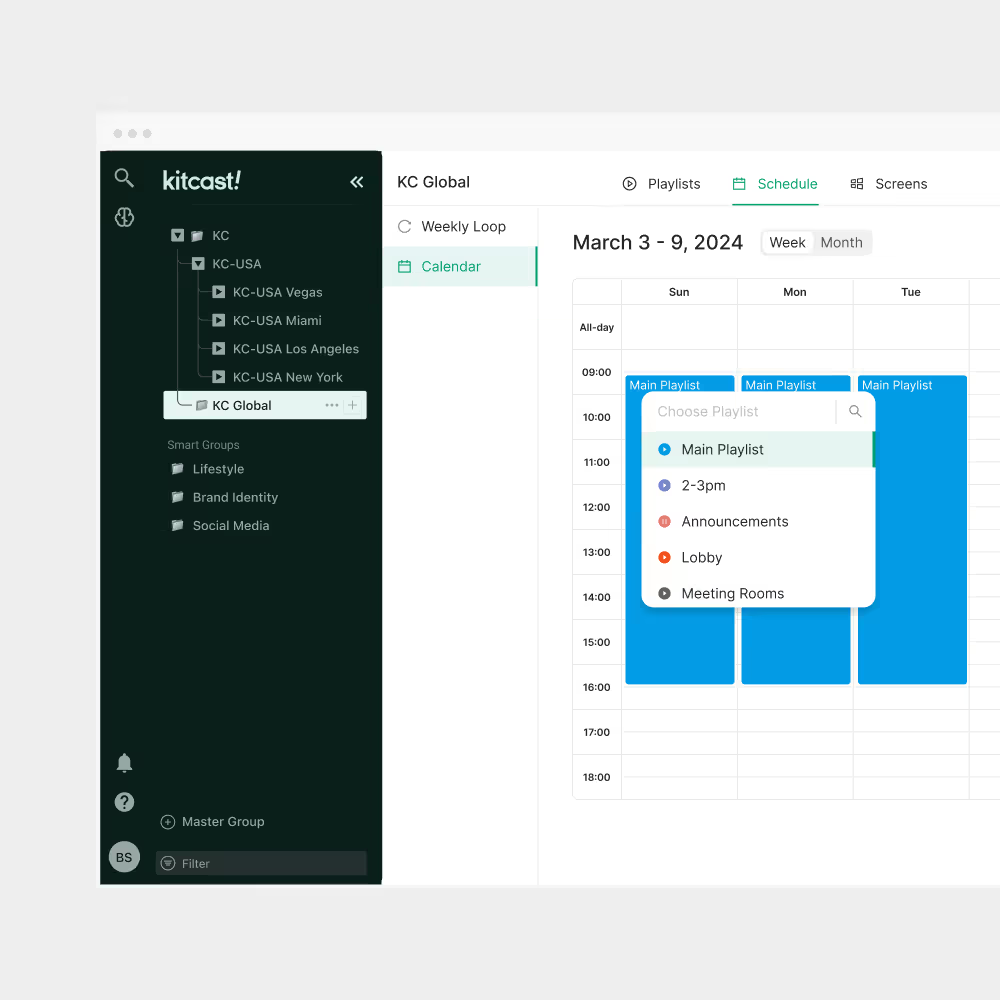
Your software is the brain of your entire digital signage network. It dictates how easy or hard it will be to manage everything. When scaling, this decision becomes even more important.
Common Mistakes to Avoid:
- Free or Basic Software: These might be fine for one screen, but they lack the centralized control, scheduling features, and user management necessary for multiple locations.
- On-Premise Solutions: Software that requires a server at each location creates a huge IT burden and makes remote management nearly impossible.
What to Look for in Scalable Software:
- Cloud-Based Management: This is non-negotiable. A cloud-based platform allows you to manage all your screens, across all locations, from a single web dashboard, anywhere in the world. No special software installations, no complex server setups.
- Centralized Content Library: You need one place to store all your approved images, videos, menus, and promotions. This ensures brand consistency and makes it easy for all locations to access up-to-date content.
- Advanced Scheduling & Playlisting:
- Dayparting: Schedule specific content to play at different times of the day (e.g., breakfast menu in the morning, lunch specials at noon).
- Location-Specific Scheduling: Assign different playlists or content to individual screens or groups of screens.
- Date-Based Scheduling: Plan seasonal promotions or holiday messages months in advance.
- User Roles & Permissions: As you scale, you’ll have different people needing different levels of access. Your marketing team might need full control, regional managers might need to update local specials, and store managers might only need to pause a screen. Look for software that allows you to define these roles precisely.
- Remote Device Monitoring & Control: Can you see if a screen is offline? Can you remotely restart a player? These features are lifesavers when you have screens spread across many miles.
- Ease of Use: If the software is complicated, your team won’t use it effectively. Look for an intuitive interface that makes content creation and scheduling straightforward, even for non-technical users.
Why Kitcast Excels Here: Kitcast is built from the ground up for ease of use and scalability. Our cloud-based dashboard lets you manage hundreds of screens effortlessly. You can group locations, assign specific content, leverage powerful scheduling, and grant access with granular permissions. This makes managing a large network as simple as managing one screen. Learn more about Kitcast’s powerful features for multi-location businesses.
Step 2: Standardize Your Hardware Selection

Consistency in hardware simplifies setup, troubleshooting, and maintenance across all your locations. Don’t let each location pick its own screens or media players.
Common Mistakes to Avoid:
- Mixing Consumer and Commercial Displays: Consumer TVs are not designed for 16-24/7 operation and will fail faster. They also lack brightness, reliable warranties for commercial use, and often don’t have the necessary inputs.
- Using Proprietary or Overly Complex Media Players: Some solutions require expensive, dedicated mini-PCs that add unnecessary cost and complexity.
What to Look for in Scalable Hardware:
- Commercial-Grade Displays: Invest in screens specifically designed for digital signage. They offer better durability, brightness, wider viewing angles, and come with commercial warranties. Top brands include Samsung, LG, and Phillips.
- Reliable, Affordable Media Players:
- Simplicity: Look for media players that are robust, inexpensive, and easy to set up.
- Compatibility: Ensure your chosen media player is fully compatible with your digital signage software.
- Small Form Factor: Devices like the Apple TV, Amazon Fire TV Stick 4K, or certain Android TV boxes are excellent choices. They are discreet, powerful enough for high-quality content, and cost-effective for large deployments.
- Consistent Mounting Solutions: Standardize your wall mounts (e.g., VESA compatible) and cabling (e.g., high-quality HDMI cables) to ensure uniform installations and easier replacements.
Kitcast’s Hardware Advantage: Kitcast is designed to run on widely available, affordable, and reliable hardware like the Apple TV and Amazon Fire TV Stick 4K. This means you avoid expensive, custom hardware, simplifying procurement, setup, and troubleshooting across all your locations.
Step 3: Develop a Smart Content Strategy
Content is king, especially when scaling. You need a strategy that balances global brand consistency with local relevance.
Common Mistakes to Avoid:
- “One Size Fits All” Content: Pushing the exact same content to every screen in every location ignores local nuances and promotions.
- Uncontrolled Local Content: Giving every store manager free rein to create their own content can lead to inconsistent branding and low-quality visuals.
- Stale Content: Digital signage loses its impact if the content never changes.
What to Look for in a Scalable Content Strategy:
- Core Brand Content: Develop a library of high-quality, on-brand content (menus, promotional videos, brand messages) that will be displayed across all locations. This ensures consistency.
- Templated Content: Create customizable templates for local promotions, daily specials, or store-specific announcements. This allows local managers to update relevant information without deviating from your brand guidelines.
- Local Customization Options: Your software should allow for designated “local content zones” or specific playlists that can be managed by local users (with appropriate permissions). This gives stores the flexibility they need while maintaining central control.
- Content Refresh Schedule: Plan a regular schedule for updating core content, seasonal promotions, and specific campaigns. Automate as much as possible with your software’s scheduling features.
- Utilize Dynamic Content: Integrate with real-time data feeds (weather, news, social media, waiting lists) where relevant to add value and keep content fresh without manual updates.
Kitcast’s Content Solutions: Kitcast offers an extensive library of professional, customizable templates that make it easy to create engaging content while maintaining brand consistency. Our platform allows for granular control over what content plays where, ensuring you can combine global campaigns with local promotions effortlessly. Check out our blog for creative digital signage content ideas.
Step 4: Streamline Installation and Setup
When deploying to multiple locations, efficiency in installation is key. A smooth rollout prevents delays and reduces costs.
Common Mistakes to Avoid:
- No Standardized Process: Allowing each location to figure out installation independently leads to inconsistencies and potential issues.
- Over-reliance on On-Site IT: Sending an IT specialist to every location for setup is costly and inefficient.
What to Look for in Scalable Installation:
- “Plug-and-Play” Simplicity: Your hardware and software should be as close to “plug-and-play” as possible. Ideally, someone with minimal technical skills at each location should be able to set up a new screen by simply plugging in the media player and connecting to Wi-Fi.
- Clear Installation Guides: Provide simple, step-by-step instructions (with pictures or even video) for local staff to follow.
- Remote Provisioning/Activation: Can new devices be remotely registered and assigned content once they come online? This significantly reduces setup time.
- Centralized Support Resources: Have a knowledge base or FAQ readily available for common setup questions.
Kitcast’s Simple Setup: Kitcast is renowned for its easy setup process. With compatible devices like Apple TV or Fire TV Stick, it’s often as simple as installing the Kitcast app, entering a short code displayed on the screen into your Kitcast dashboard, and assigning a playlist. This makes multi-location rollouts remarkably efficient.
Step 5: Implement Robust Management & Support
Once your network is live, ongoing management and support are crucial for long-term success.
Common Mistakes to Avoid:
- Neglecting Monitoring: Not knowing when a screen goes offline or displays incorrect content.
- Lack of Training: Expecting local staff to manage content or troubleshoot without proper guidance.
What to Look for in Scalable Management & Support:
- Centralized Monitoring Dashboard: A dashboard that provides an overview of all your screens, showing their online/offline status, what content is playing, and any potential issues.
- Remote Troubleshooting Capabilities: The ability to remotely restart media players or diagnose problems without needing to send someone on-site.
- Tiered Support Structure: Define who handles what. For example, local staff handle basic “is it plugged in?” questions, regional managers handle content updates, and central IT/marketing handles software issues or advanced troubleshooting.
- Ongoing Training: Regularly train local staff on how to use the system for basic updates and troubleshooting. Provide refreshers as needed.
- Analytics & Reporting: Track content performance, viewing times, and screen uptime. This data helps you optimize your content strategy and justify your investment.
Kitcast’s Management & Support Features: Kitcast’s dashboard offers comprehensive monitoring, allowing you to see the status of all your devices at a glance. Our platform is designed for intuitive use, minimizing the need for extensive training. When issues do arise, our support team is ready to help, and our system’s reliability reduces common problems.
Scale Smart, Not Hard

Scaling digital signage across multiple locations is a significant undertaking, but with the right strategy and tools, it can be rewarding. The key is to prioritize simplicity, centralization, and consistency in every step of the process.
By choosing robust, cloud-based software, standardizing your hardware, developing a flexible content strategy, streamlining installation, and implementing strong management practices, you can build a digital signage network that truly enhances your brand and operations across all your sites.
Don’t let the complexity of multi-location deployment deter you. With a solution like Kitcast, you gain an intuitive, powerful platform that simplifies every aspect of scaling your digital signage, allowing you to focus on delivering engaging content and driving business growth.
Ready to take your digital signage to the next level? Explore how Kitcast can help you effortlessly manage displays across all your locations.
Frequently Asked Questions: Scaling Digital Signage
Q: What is the biggest challenge when scaling digital signage to multiple locations?
A: The single biggest challenge is management and consistency. Without a proper system, you can quickly lose control. Different stores might show outdated promotions, branding can become inconsistent, and you’ll have no easy way of knowing if a screen in another state is offline. This is why choosing a powerful, cloud-based management platform is the most critical first step.
Q: What is the best digital signage software for multiple locations?
A: The best software for multiple locations is cloud-based, easy to use, and has strong remote management features. Look for a platform like Kitcast, which is designed for scalability. Key features you need are:
- A single, central dashboard to see all screens.
- The ability to group screens by region or store.
- Advanced content scheduling (for local vs. national promos).
- User roles and permissions to control who can change what.
Q: How do I update content for all my stores at the same time?
A: A cloud-based Content Management System (CMS) solves this. You log into your central dashboard (like Kitcast’s), make the change to your main playlist, and hit “publish.” That new content is then automatically pushed to every screen in your network—whether it’s 10 screens or 1,000—in minutes.
Q: Can I show different, local content at specific stores?
A: Absolutely. This is a key feature of a good multi-location system. You can set your main brand content to play everywhere, but also schedule specific content to only play at certain locations. For example, your national dashboard can run a “20% Off” sale, while allowing your New York store manager to log in (with limited permissions) and add a “NYC-Only Daily Special” to their local screens.
Q: How do I know if a screen is offline at a remote location?
A: This is done through “remote device monitoring.” A professional platform like Kitcast has a central dashboard that shows you the real-time status (online or offline) of every single screen in your network. This allows your IT or marketing team to proactively spot and troubleshoot a problem in another city without ever leaving their desks.
Q: Do I need a separate computer for each screen at every location?
A: No, and you shouldn’t. This is an old, expensive, and unreliable way to scale. Modern solutions like Kitcast run on small, affordable, and highly reliable media players like an Apple TV or Amazon Fire TV Stick. This makes installation at new locations as simple as “plug-and-play” and dramatically lowers your hardware and maintenance costs.


